Apple Preview became a native iPad app with the release of iPadOS 26, bringing familiar PDF editing tools from the Mac to Apple’s tablets. In 2026, iPad owners can use Preview to organise PDF pages, complete forms, add handwritten signatures, scan paperwork and annotate documents with Apple Pencil. Many tasks that previously required a separate PDF editor can now be completed using Apple’s built-in software. The app is particularly useful for students reviewing course materials, professionals handling contracts and anyone who regularly receives documents by email. Understanding its editing features, signature tools and limitations makes it easier to manage everyday paperwork without switching between several apps.
How Apple Preview Works on iPad in 2026
Apple introduced Preview for iPad as part of iPadOS 26 in 2025. Before this release, iPad users could already view PDFs through Files, Books and other apps, but document management was spread across different tools. Preview brings these activities into one dedicated app with controls for reading, annotating, editing and exporting PDF files. It also supports common image formats, making it useful for handling screenshots, scanned photographs and other visual documents. The app is included with compatible iPadOS installations, so there is no separate subscription or purchase required for its standard features.
Getting started is straightforward. Open Preview from the Home Screen or App Library and select a PDF from the available files. Documents stored locally or in accessible cloud storage locations can be opened through the file browser. If a PDF arrives as an email attachment, it can also be saved to Files and opened in Preview. The interface displays the document prominently, with controls for navigation, annotations, sharing and other actions. For longer documents, the thumbnail sidebar makes it easier to move between pages without repeatedly scrolling through the entire file.
Preview is designed for practical document changes rather than extensive desktop publishing. Users can highlight passages, add comments, insert or remove pages, rotate incorrectly oriented sheets and complete forms. However, modifying the original wording of an existing PDF is different from adding annotations or text boxes. Preview does not provide the same comprehensive paragraph editing and document reconstruction tools found in specialist PDF editors. If a contract contains an incorrect sentence that must be rewritten, obtaining the original editable document is often preferable. For reviewing, signing and assembling ordinary PDFs, Preview covers a substantial range of everyday requirements.
Editing, Organising and Exporting PDF Documents
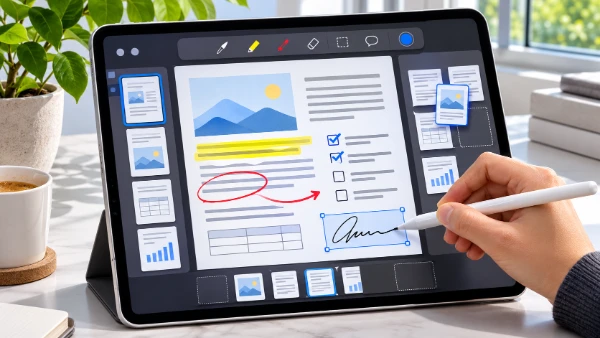
One of Preview’s most practical features is its page management system. Open a multipage PDF, display the thumbnail sidebar and touch and hold a page thumbnail to access the available actions. Pages can be rearranged by dragging their thumbnails into a different position. The menu also provides options for inserting a blank page, adding content from another file or deleting an unnecessary page. Individual pages can be rotated when a document contains sideways scans, while the cropping tool helps remove unwanted margins. These functions are especially valuable when preparing an application containing several attachments or correcting a document scanned in the wrong order.
Preview also provides useful options for working with existing text. In PDFs containing selectable text, users can touch and hold a word, adjust the selection and copy it into another app. Selected passages can be highlighted in different colours, underlined or marked with a strikethrough. This makes it easier to review lengthy reports, identify important contractual clauses or distinguish information that requires further attention. Scanned documents may behave differently because their pages often consist of images rather than ordinary text. Text recognition can improve searchability, but it does not turn every scanned page into a fully editable word-processing document.
Once the editing work is complete, the file can be exported or shared. Preview supports PDF, JPEG, PNG, HEIC and TIFF export formats, although the appropriate choice depends on the original file and intended use. To export, open the actions menu beside the filename, select Export and choose the required format. Available settings may include image quality, resolution or options affecting PDF file size. For a document intended for printing or further review, PDF is usually the most sensible choice. For a single visual page intended for a presentation, an image format may be more convenient. Keeping an untouched original is advisable when working with important records.
Filling Out PDF Forms and Signing Documents on iPad
Completing paperwork is one of the strongest reasons to use Apple Preview. The app supports interactive PDF forms containing fields for names, addresses, dates and other information. After opening a compatible form, select the form-filling control and tap a highlighted field to enter the required details. The onscreen keyboard appears automatically, while AutoFill can suggest information from the user’s contact details where appropriate. This is particularly convenient for registration forms, administrative paperwork and applications that request the same personal information repeatedly. Before submitting a completed form, it is worth checking every field because automated suggestions may not match the exact information requested.
Not every PDF contains interactive form fields. Some organisations still distribute documents designed primarily for printing, with blank lines or boxes that cannot be selected for ordinary typing. Preview offers a practical alternative through its text annotation tools. Users can insert a text box, position it over the relevant area and type the requested information. This allows many non-interactive forms to be completed without printing them. Text boxes should be positioned carefully, particularly where the document contains narrow spaces or small labels. A final visual inspection helps ensure the completed information remains readable and does not overlap the original wording.
Adding a handwritten signature is another important capability. Preview allows users to create a signature with their finger or a compatible Apple Pencil and place it directly onto a PDF. The signature can be moved and resized to fit the designated area, which is useful for forms that provide only a small signing box. This method works well for many routine acknowledgements, approvals and personal documents. However, a signature drawn onto a PDF is not automatically equivalent to a qualified electronic signature under applicable law. Documents involving regulated transactions, formal identity verification or specific contractual requirements may need a recognised electronic signing service.
How to Sign a PDF with Apple Pencil or Your Finger
To sign a document, open the relevant PDF in Preview and locate the signature area. For a form with interactive fields, use the form-filling controls and choose the option to add a signature. Alternatively, open Markup and use the Add control to insert a signature. Draw your name with Apple Pencil or your finger, then place the resulting signature in the appropriate position. The handwritten result can be adjusted before the document is shared. Apple Pencil usually provides greater precision than finger input, especially when reproducing smaller signatures. Users should nevertheless check that their signature remains clear and that it has not been placed over important printed information.
For documents that require several signatures or initials, the simplest approach is to review all pages before beginning. A contract may include a main signature field at the end and separate acknowledgement boxes elsewhere. Preview allows users to move between pages and add the necessary annotations without printing each sheet individually. After signing, inspect the complete PDF rather than relying only on the final page. Check that names, dates and signatures are present, that no fields have been accidentally covered and that the document remains legible. Where a recipient requests a particular signing method, follow those instructions instead of assuming a handwritten PDF annotation will be accepted.
Protecting completed paperwork also deserves attention. Preview includes a password-locking feature for PDF documents. Open the actions menu beside the filename, choose Lock and enable the password requirement before entering and confirming the password. Apple recommends duplicating a document first if an unprotected copy may be needed later. Password protection can help restrict access to files containing confidential information, but the password itself must be stored securely. When sending sensitive paperwork, verify the recipient’s address and consider whether ordinary email is an appropriate delivery method. A protected PDF is useful, but it does not replace careful document handling or secure communication.
Using Apple Pencil, Scanning Documents and Managing Files
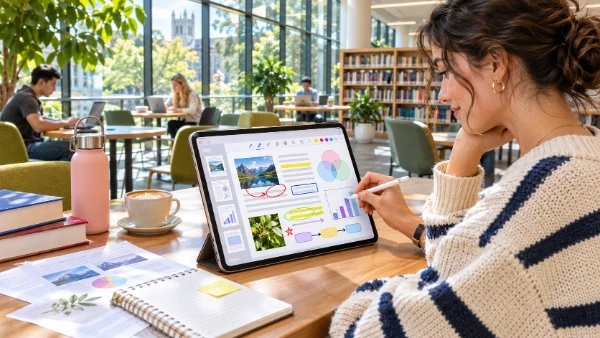
Apple Pencil makes Preview particularly useful for handwritten feedback and visual document review. With a compatible iPad and Pencil model, users can write directly over PDF pages using Markup. The available drawing tools support different pen styles, colours and stroke widths, allowing annotations to be adapted to the document. A student might underline a definition, circle a diagram and write an explanation beside a difficult passage. A designer could mark changes on a draft, while a manager might add handwritten comments to a report before returning it to a colleague. These annotations remain part of the PDF workflow and can be shared with the marked-up document.
Preview also includes tools for adding shapes, text and other visual elements. Arrows can indicate a particular area of a drawing, while rectangles or circles help identify sections that need attention. Text annotations are useful when a typed explanation would be clearer than handwriting. The app also supports ordinary touch input, so Apple Pencil is helpful rather than essential. Compatibility matters, however: different iPad generations support different Apple Pencil models, and some advanced Pencil features depend on the hardware being used. Checking Apple’s compatibility information before purchasing a stylus is therefore important, particularly for owners of older iPads.
Beyond marking existing files, Preview can create a blank document for drawing or handwriting. From the main screen, select New Document and choose a new empty image. The resulting canvas can be used for quick sketches, handwritten ideas or simple visual notes. Apple Pencil is particularly comfortable for this kind of work because it allows more natural control over lines and handwriting than fingertip input. Preview is not intended to replace full illustration software or sophisticated digital notebooks, but its simplicity is useful when a quick annotated image is all that is needed. The finished work can be exported and shared without first moving it into another editing app.
Scanning Paperwork, Sharing PDFs and Understanding the Limitations
Preview can turn physical paperwork into a PDF using the iPad camera. Open the app, select Scan Documents and position the camera over the page. The iPad can detect the document automatically, although manual capture is also available when the lighting or background makes automatic scanning difficult. Additional pages can be captured in the same session, creating a multipage document. Before finishing, review the thumbnails and adjust cropping, rotation or colour settings where necessary. For better results, place the paper on a contrasting surface, avoid shadows and keep the camera parallel to the page. These small precautions make a noticeable difference when scanning receipts, letters and signed forms.
After scanning, the document can be annotated, signed, reorganised and exported using the same tools available for other PDFs. This creates a practical workflow for handling paper-based forms: scan the pages, check their order, insert any necessary information, add a signature and save the completed file. Preview also supports searchable PDF workflows, including text recognition options when exporting suitable documents. Searchability is particularly helpful when storing large collections of receipts or administrative records. However, recognition accuracy depends on the quality of the scan, handwriting, language and page layout. Important names, numbers and amounts should always be checked against the original paper document.
For long-term file management, descriptive filenames and consistent folders are more useful than keeping every document in a general downloads directory. Preview works alongside the Files app, allowing documents to be renamed, duplicated, moved and shared. A simple naming convention using the document type, organisation and date makes future retrieval easier. Users should also consider file size when emailing scans, as high-resolution images can create unnecessarily large PDFs. Preview’s export settings can help reduce file size, although excessive compression may make small print difficult to read. In 2026, the app is a capable everyday PDF companion for iPad users, particularly for annotation, forms, signatures and scanning. Specialist software remains preferable when extensive text editing, advanced document conversion or certified electronic signing is required.